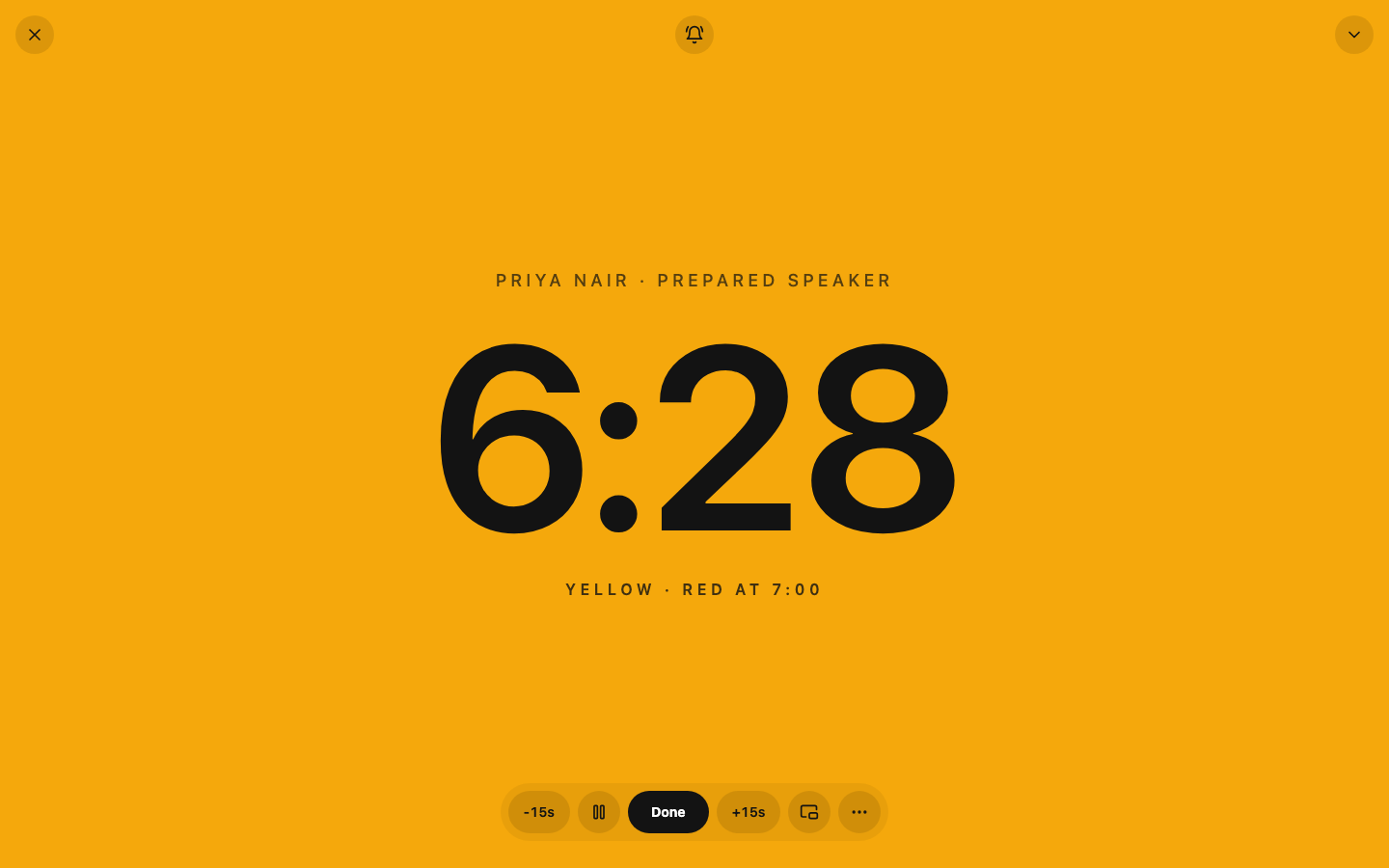
The speech begins. The Timer starts the clock.
In a Toastmasters meeting, one member serves as the Timer. They show green, yellow, and red signals so each speaker can pace themselves without watching a clock, record the finished time, and report it to the group.
Green appears at five minutes. Yellow at six. Red at seven. The qualifying range may extend from 4:30 to 7:30. The next person is an evaluator with a different range. Then several Table Topics speakers, the meeting’s impromptu speakers, each need a name and final time in the report.
A stopwatch measures elapsed time. It does not manage the rest of the meeting.
The Timer must follow the agenda, operate the signals, watch the speaker, save each result, and prepare a clear report.
We built the free speaking.app Speech Timer around that complete workflow.
The Timer manages several tasks
The official Toastmasters Timer description says the Timer monitors meeting segments and speakers, explains the timing rules and signal, listens and signals throughout the meeting, and reports each speaker’s name and time.
Toastmaster magazine’s Timer’s Toolkit reduces the equipment to three essentials: an agenda, a signal, and a clock.
That checklist also shows how much attention the role requires.
The Timer has to know which timing rule applies, keep the current clock accurate, make the correct signal visible at the correct moment, associate the result with the correct person, and prepare the report. At the same time, the Timer must pay enough attention to notice when the speech actually begins and ends.
A generic stopwatch handles the elapsed time. It does not organize the rest of the meeting.
For a complete role script and common meeting timings, we maintain a separate Toastmasters Timer guide.
Signals and qualification windows are different
The green, yellow, and red signals are not always identical to the final qualification rule.
For International, Humorous, and Online contest speeches, the current 2026–2027 Speech Contest Rulebook sets visible signals at 5:00, 6:00, and 7:00, with qualification from 4:30 through 7:30. Evaluation contests use signals from 2:00 through 3:00 with qualification from 1:30 through 3:30. Table Topics contests run from 1:00 through 2:00, with an upper qualification limit of 2:30. Fractions of a second are disregarded when qualification is determined.
Projects and agendas can specify other ranges, so the agenda remains the source of truth.
We represented those as two related systems in the timer:
- Signal times control when the screen turns green, yellow, and red.
- Qualification times control the result shown in the report.
That separation matters. Under the contest rules above, a seven-minute speech ending at 7:18 has passed the red signal but remains inside the qualification window. The Timer should not have to reconstruct that distinction while preparing the final report.
Set up the complete meeting
Before the first speech, the Timer can choose a built-in range or set custom green, yellow, red, and qualification times. Speakers can be added to a lineup with their roles. Each row can then start the correct timer, and the finished time returns to that same row.
Clubs using EasySpeak, Toastmost, or FreeToastHost can also choose Import agenda, review the meeting assignments, and add the selected speakers without typing every name. The live agenda remains the source of truth, so the imported list is still checked before timing begins.
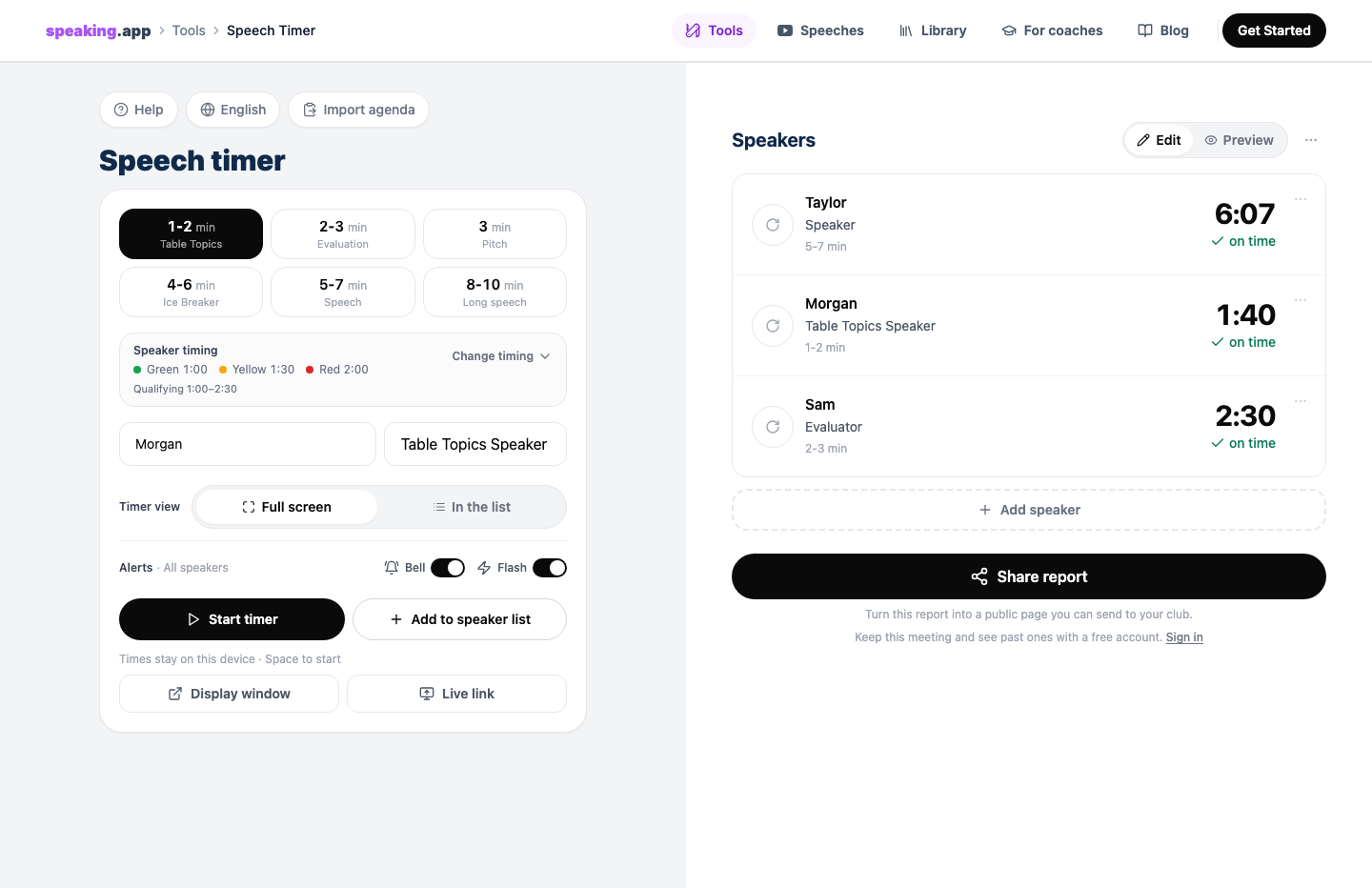
The setup, speaker list, and completed times remain in one workflow.
The same workflow adapts to a phone or tablet. In full-screen mode, the phone becomes the timing signal.
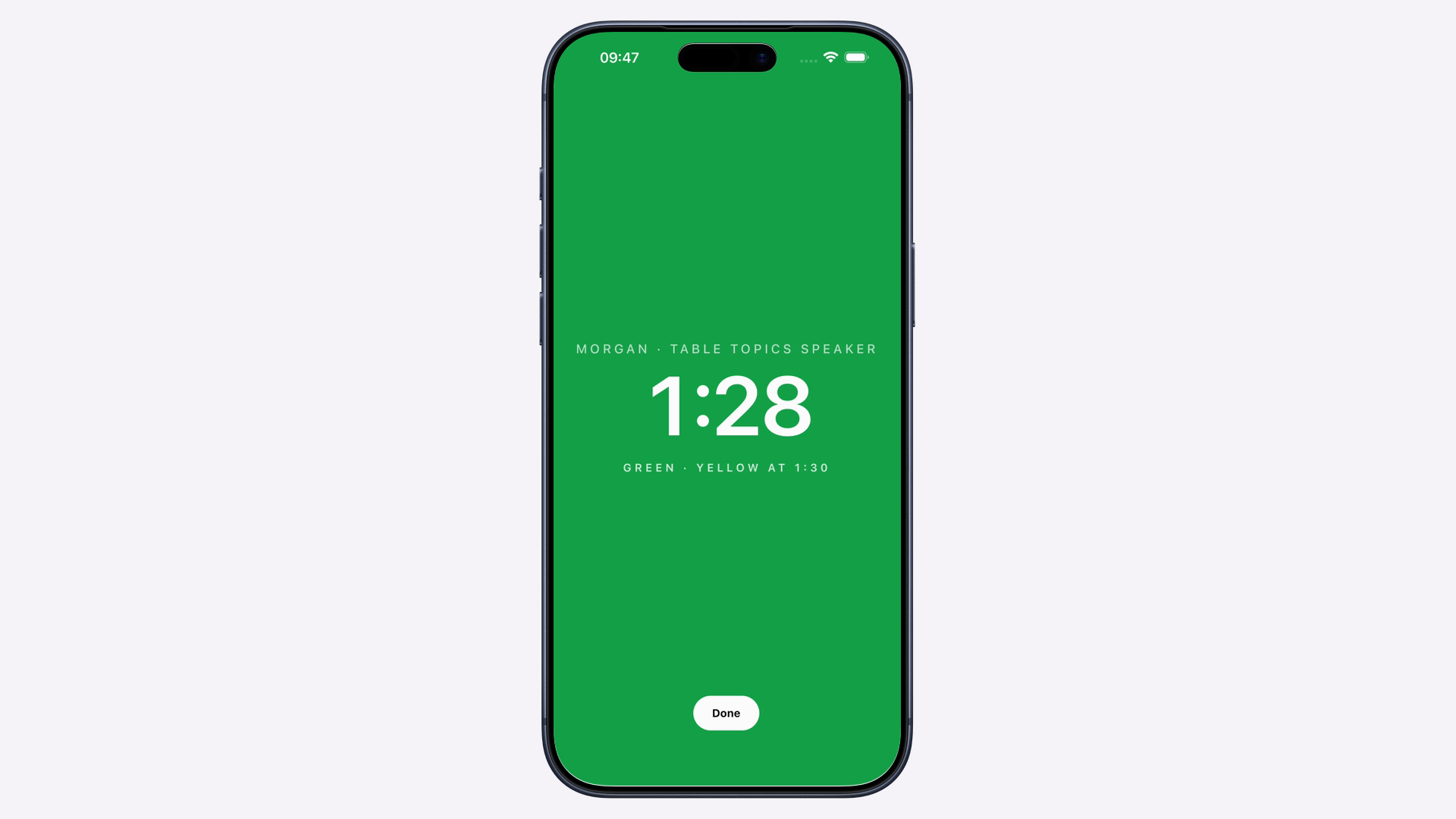
A real mobile timer capture inside the same phone proportions used on our Toastmasters pages. The mobile and desktop versions use the same timing rules, alerts, and report.
Give the room a separate display
The interface supports two jobs without forcing them onto the same screen:
- The Timer keeps the controls and speaker list.
- The room can see a clean signal on a projector, second screen, phone, tablet, or remote computer.
For a projector connected to the Timer’s computer, Display window opens a synchronized view on that same computer. For another device, Live link creates an unlisted audience view that can be opened from a link or QR code. The link lasts for 12 hours, can be opened on several devices, and exposes the timing signal rather than the controller, speaker list, or report.
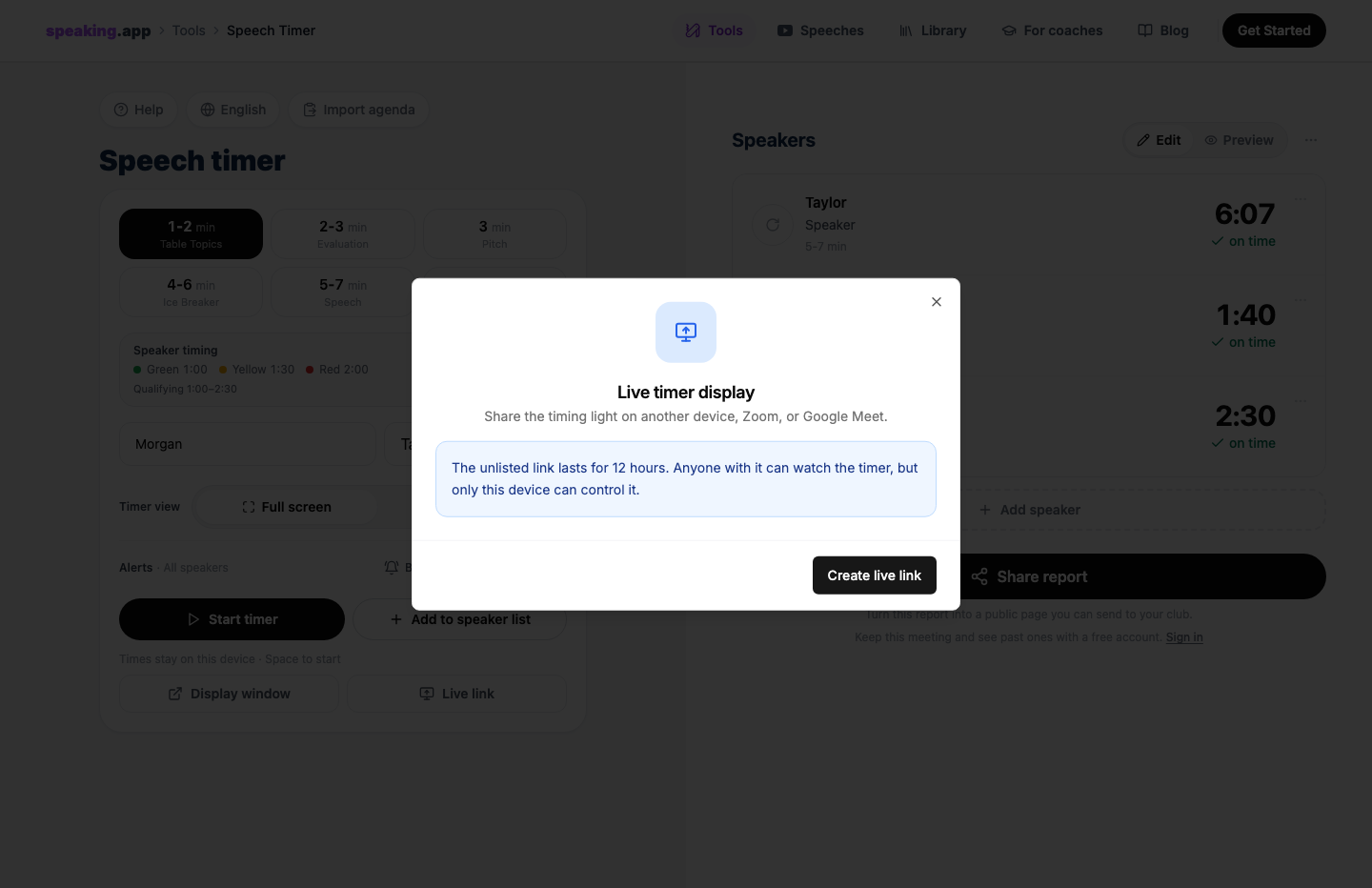
The Timer creates the temporary audience link from the controller. The audience sees the timing display, not the controls.
This also works for hybrid and online meetings. The Timer can use the controls on a laptop. A speaker can watch the signal on a phone. The host can share the same live view in Zoom, Google Meet, Microsoft Teams, or another call platform. This follows the principle in Toastmasters’ online-meeting guidance: remote speakers need a visible color-coded cue.
The Timer can also choose what the Live link shows between speakers: a black waiting screen, the latest names and times, or compact timing timelines. A completed time can remain visible briefly before the audience view returns to that idle state.
When the Timer starts a speech, the stage becomes the signal.
The screen shows both color and text, so “Yellow” remains explicit rather than relying on color recognition alone. Each transition gives the surface a brief visual pulse. The timer can also request that the screen stay awake during an active session.
Bell and flash are optional settings that apply to all speakers in the meeting. The Timer can ring the desk-bell sound manually or enable it for the final timing limit. A red-and-white flash can mark the same limit. Each Live-link viewer decides whether to enable sound on their screen. If the display is shared in an online call, the call also needs browser or system audio for participants to hear the bell.
The Timer still watches the speaker, chooses the right range, and decides when a speech has ended. The interface manages the timing state and arithmetic so the Timer can keep their attention in the room.
Each completed speech updates the report
A basic stopwatch gives the Timer an elapsed time. The Timer still has to associate it with a speaker, role, assigned range, and result. Our timer turns the completed run into that report entry immediately.
The next speaker can begin without the Timer copying a number to another app or piece of paper. As the meeting continues, the speaker lineup gradually becomes the Timer’s report.
That report can distinguish a target-range finish, a finish within a qualification window, an underrun, and an overrun. It can also summarize the number of speakers, total timed speaking, and the longest overrun.
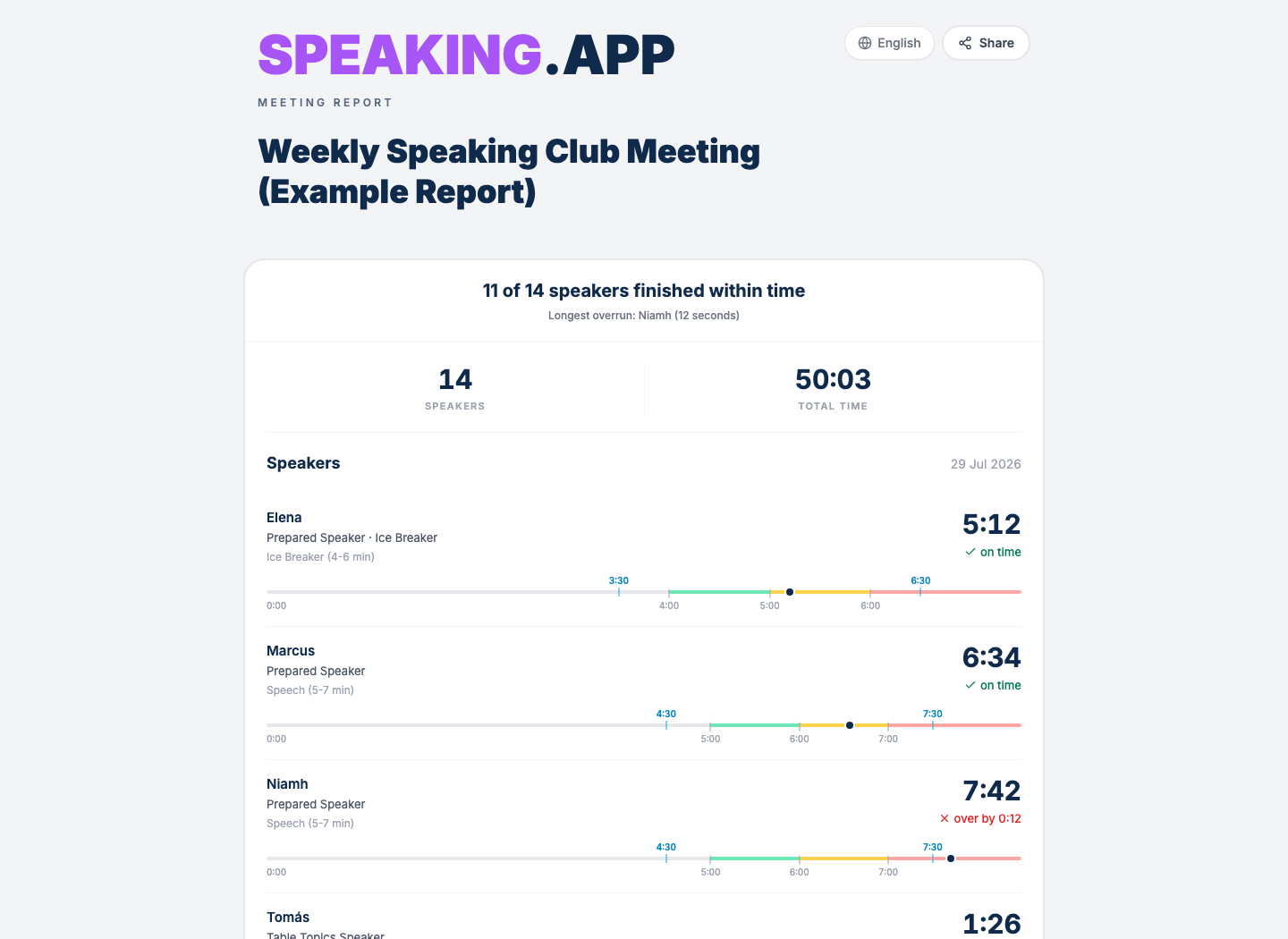
This is the recipient-facing shared-report view. It preserves the relationship between each finish and the timing signals; all meeting data is fictional.
You can open the same live example Timer report to see the full recipient-facing page. The report page is the real product; only its meeting data is fictional.
The visual timelines do something a spoken list cannot. They show where each finish landed relative to the minimum, signal range, and maximum qualifying time. A member can see not only that they were over, but by how much and where the red signal occurred.
Use the report during and after the meeting
The traditional Timer report is delivered aloud. It is a sequence of names and times, sometimes with eligibility or qualification notes. This report is still the first priority.
If the detailed results remain only on paper, however, each member has to remember their own time or ask for it later. Meeting minutes may preserve a simplified version, but they do not necessarily include the timing range, qualification window, or relationship to the signals.
We wanted the same work to produce two useful outcomes:
- A report the Timer can read immediately.
- A page the club can choose to share afterward.
Live timing and the temporary Live link are free and do not require an account. The timer and current results otherwise stay on the controller device. A free account is required to save meetings across devices and create a lasting, shareable report link. Anyone receiving that report link can read it in a browser.
Clubs can also keep Timer and Ah-Counter reports together in a private Club Home, organized by meeting. That does not replace the spoken report. It gives the club the option to retain the result after the meeting.
Support the complete Timer workflow
There are dedicated timers, phone apps, physical lights, colored cards, and club-specific setups. Different rooms need different tools.
We designed one browser-based workflow to cover setup, every timing signal, and the final report.
The Timer’s work is not finished until the last name and time are ready to report. The same results can remain available after the meeting when the club chooses to keep them.
The first article in this series explains how we approached the same challenge for the Ah-Counter role.
You can try the free Speech Timer in your browser. No account is needed to time a meeting or create a temporary Live link, and installing the optional web app is not required.
speaking.app is an independent product and is not affiliated with or endorsed by Toastmasters International. Timing rules vary by project, contest, and club; always follow the current agenda and official rules. Product details and source links were checked on August 26, 2026.