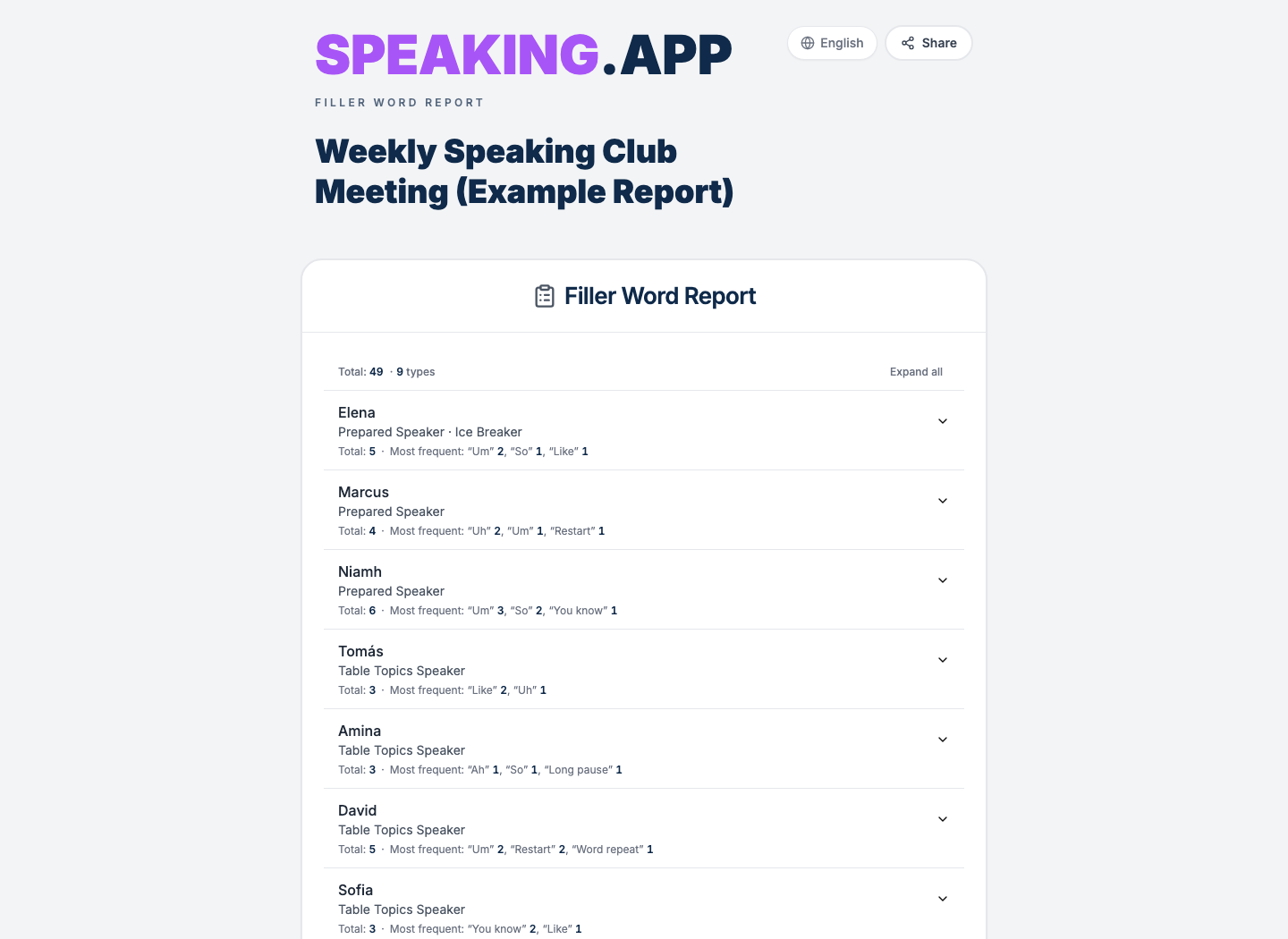
In a Toastmasters meeting, the Ah-Counter listens for filler sounds, overused words, and distracting pauses, then gives the group a short report near the end.
The hard part is tracking several kinds of filler for several speakers while the meeting keeps moving.
The speaking.app Filler Counter is built for that live workflow. It is manual, so you still make the judgment about what counts. The counter keeps each tally attached to the right speaker and prepares the report.
This guide explains the product workflow. If you need the role description, opening script, or guidance about what to count, begin with our Toastmasters Ah-Counter role guide.
1. Open the counter before the meeting
Open the Filler Counter in a phone, tablet, or laptop browser. You do not need an account to begin counting. You can install speaking.app as a web app for quicker access, but installation is not required.
Give the meeting a recognizable name. A date or a combination of club name and date works well. If you later choose to save or share the report, that name will help people identify it.
The live counter remains on the current device in guest mode. Signing in becomes necessary only if you want to keep it with your account, move between devices, add it to a Club Home, or create a shareable report link.
2. Add the expected speakers
Add one card for each expected speaker. Give each card a name and, when useful, a role such as Prepared speaker, Evaluator, or Table Topics speaker.
Table Topics is the meeting’s impromptu-speaking portion. An evaluator gives feedback on another member’s prepared speech. Adding those roles is optional, but it makes the final report easier to scan.
Setting up the expected names before the meeting reduces the amount of typing you need to do while someone is speaking. You can still add another person at any time if the agenda changes or a guest takes part.
Choose Import agenda to load assignments from EasySpeak or Toastmost, or to paste a FreeToastHost agenda. Review the meeting and speakers, then check the result against the live agenda before the meeting begins.
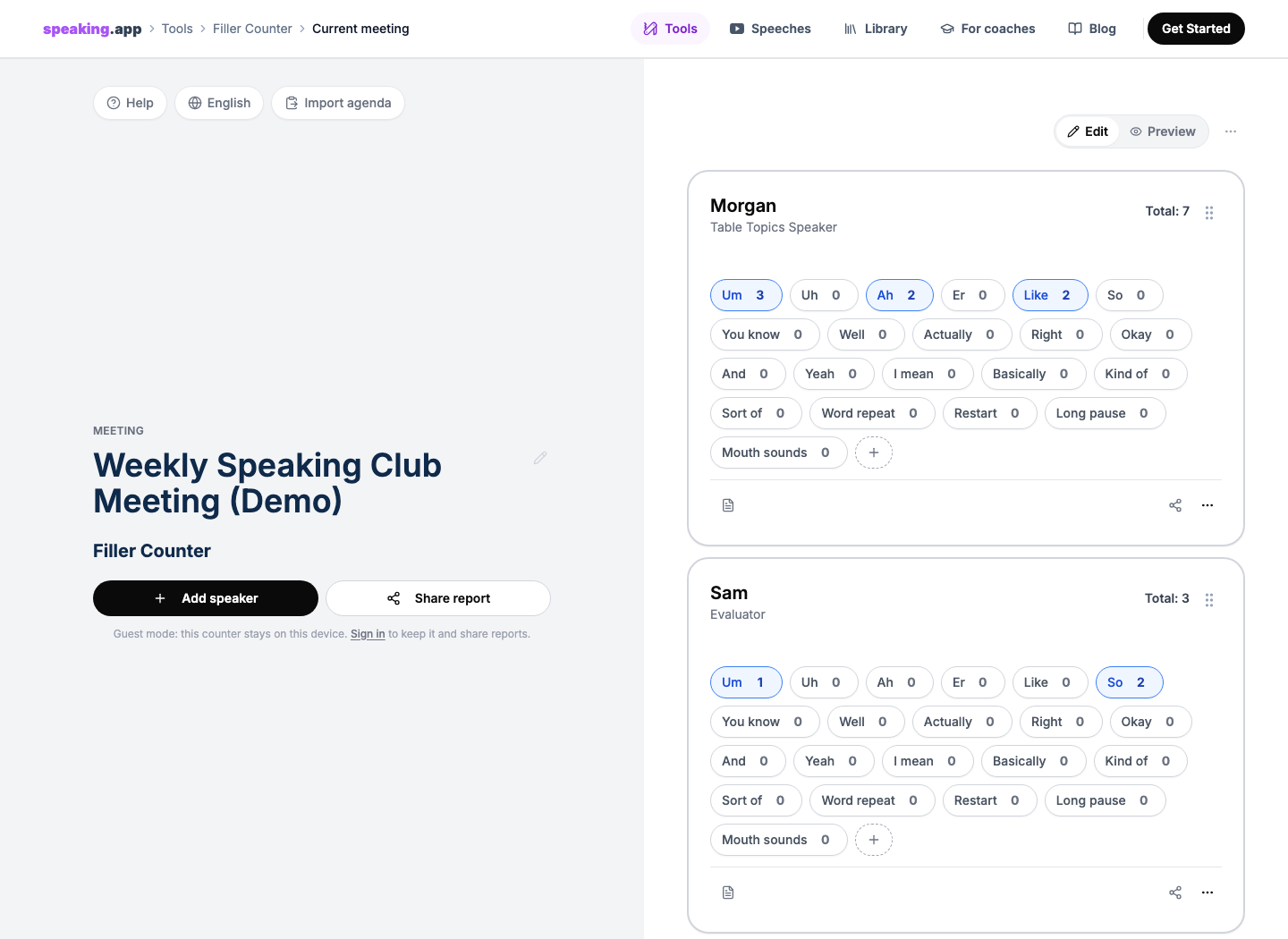
On a laptop or desktop, multiple speaker cards can remain visible together. The meeting, names, and counts shown here are fictional demo data.
3. Decide what your club is tracking
The English counter includes common buttons such as “um,” “uh,” “ah,” “like,” “so,” “you know,” sentence restarts, word repeats, mouth sounds, and long pauses.
Not every occurrence should be counted. “So” may be a perfectly ordinary transition. “Like” may be functioning as a verb. Toastmasters guidance emphasizes context, which is why the tool does not listen through a microphone or count from a transcript.
Toastmasters’ official role description explicitly includes overlong pauses, which is why Long pause is a default button. That does not make every silent beat a mistake.
Count a pause only when you judge that it is overlong or being used as a verbal crutch. An intentional pause for emphasis can be effective.
If your club tracks another habit, press the plus button and add a custom label. The custom button appears on every speaker card in that meeting.
4. Tap while listening
When you hear a filler that fits your club’s agreed approach, tap the matching button on the current speaker’s card. The number changes immediately. A supported device may also give a brief vibration.
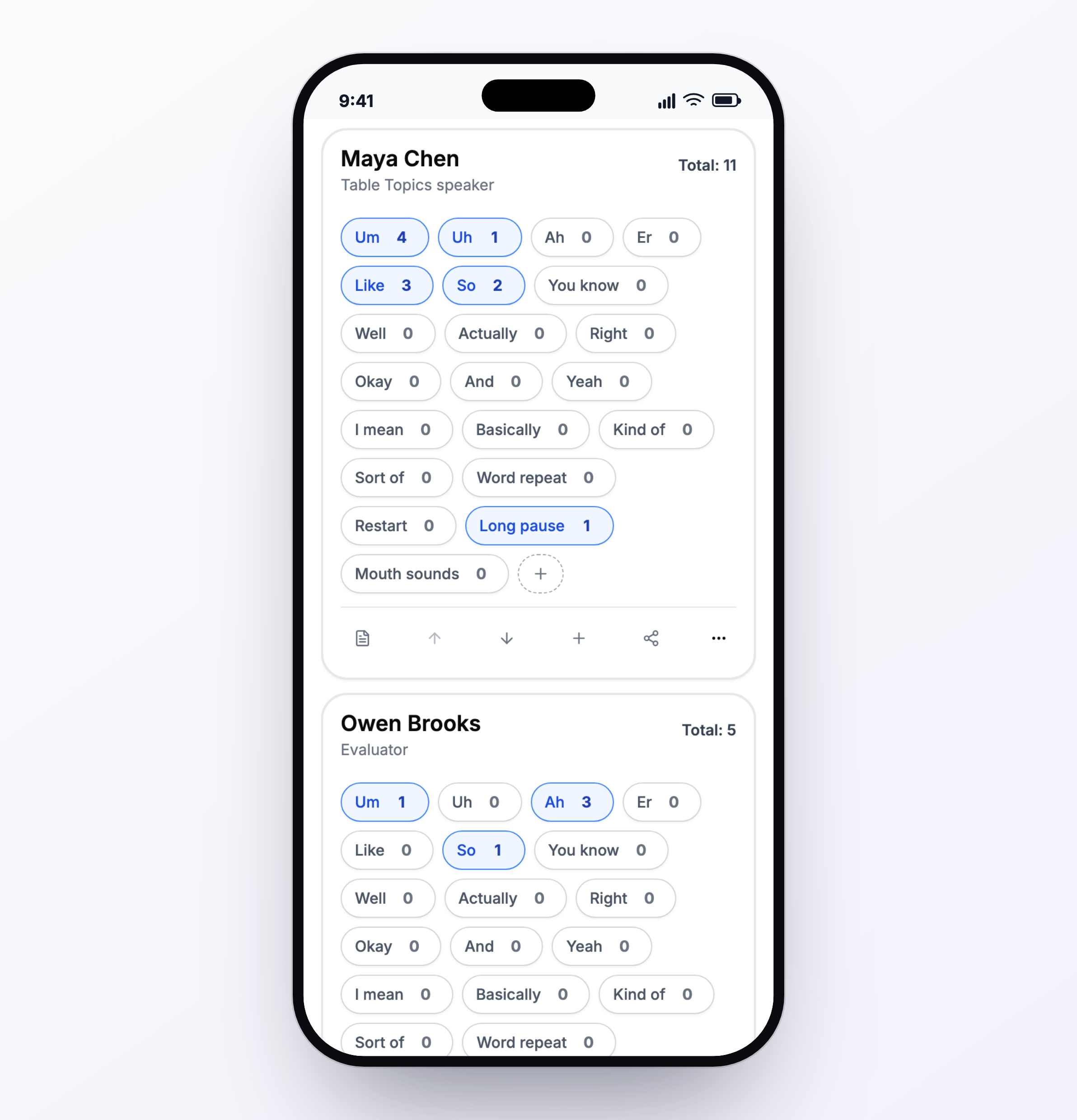
The mobile counter keeps the main controls within reach. The same counter expands across a tablet, laptop, or desktop.
The useful rhythm is short: hear, decide, tap, and return your attention to the speech.
Do not stop listening to reconstruct a filler you may have missed. Continue from the present moment. An honest partial tally is more useful than a guessed tally.
5. Correct mistakes and add useful notes
If you tap the wrong word, press and hold that button to subtract one. The long press is deliberate so an ordinary tap cannot accidentally reduce the count.
You can also attach a note to a speaker. Notes are most useful when they record a pattern rather than an evaluation of the person. For example:
Most of the “ums” appeared while moving from one point to the next.
That observation gives the speaker something specific to practise. “Used too many fillers” gives them less useful information.
6. Preview the report before you are called
Switch from Edit to Preview near the end of the meeting. Preview turns the live cards into the report view while preserving the underlying counts.
Check three things:
- Every speaker is listed under the correct name.
- The totals look plausible and no accidental tap remains.
- Any note you plan to mention is neutral and useful.
The report shows each speaker’s total and most frequent words. That means you can prepare your spoken report without adding columns while the General Evaluator is waiting.
Below the speaker list, the same data appears as a bar chart or a donut chart. The bar view makes absolute counts easy to compare; the donut view makes the proportions easier to see. These are meeting-level summaries of filler types, not scores assigned to the speakers.
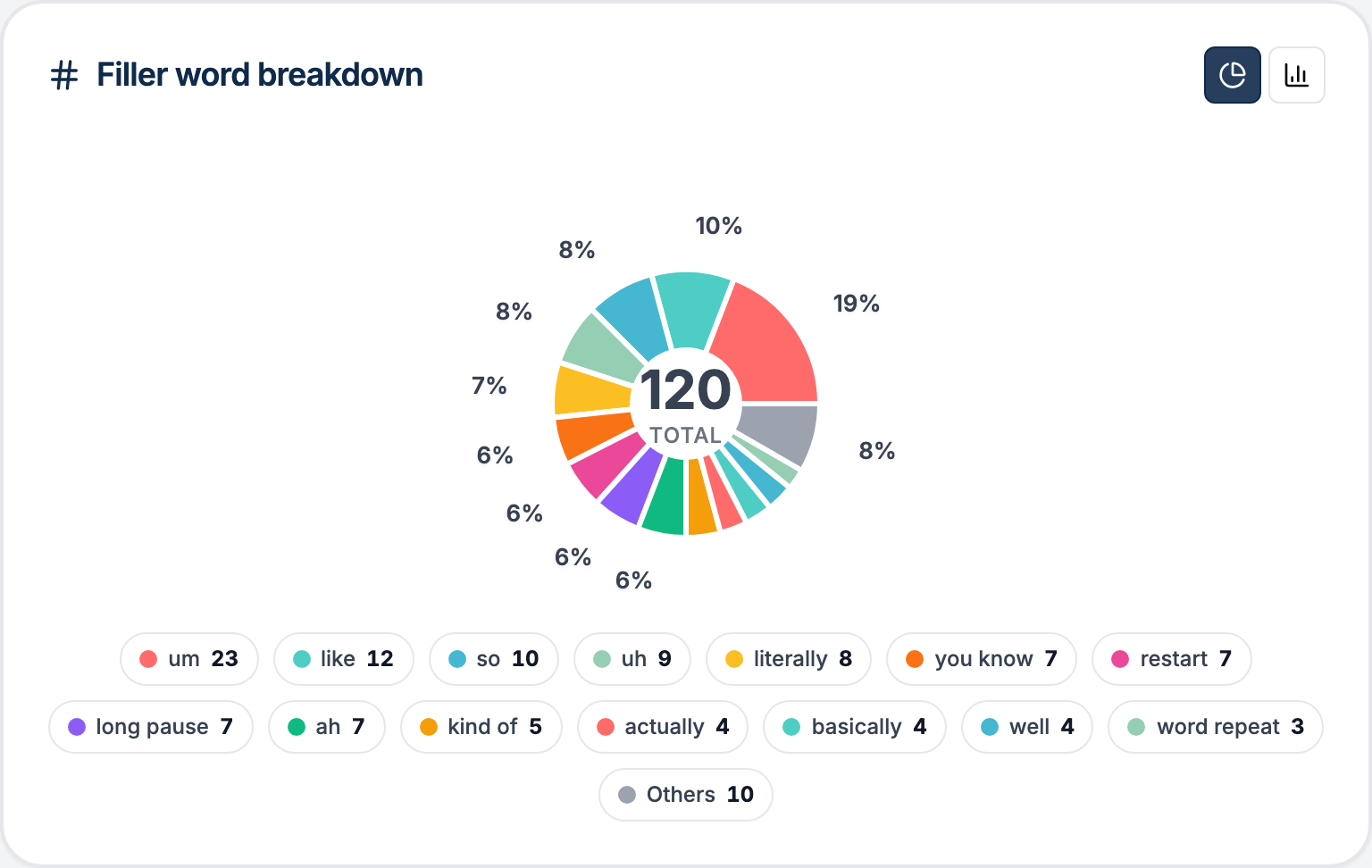
The graph view provides a visual summary after the detailed speaker-by-speaker report. This example uses fictional demo data.
7. Give the spoken report first
The tool prepares the numbers; it does not replace the spoken report. When called, give the concise report expected by your club.
You do not need to read every zero or every category. Toastmasters guidance on constructive reporting recommends focusing on meaningful patterns, avoiding unnecessarily embarrassing numerical callouts, and recognizing effective pauses.
Our article about why we designed the counter this way covers the reasoning in more detail.
8. Share only when it is useful
If your club wants the detail after the meeting, choose Share report. Creating the public link requires a free account. Anyone with that link can read the report in a browser, so treat it as information intended for that audience.
For a private club history, a signed-in user can instead place the report in a Club Home beside the Timer report for the same meeting. Club Home keeps individual reports; it does not calculate trends across meetings.
If the club does not want a retained report, the live counter can remain a guest session on your device. Sharing is an option, not a requirement of the Ah-Counter role.
To preview the shared page, open our live example Filler Word Report. It uses fictional meeting data.
A simple operating checklist
Before the meeting:
- Name the meeting.
- Add the expected speakers and roles.
- Confirm what your club wants counted.
During the meeting:
- Select the current speaker.
- Tap only after making the contextual judgment.
- Long-press to correct an accidental count.
- Add short notes only when they make the report more useful.
Before reporting:
- Open Preview.
- Check names and totals.
- Choose the one or two patterns worth mentioning.
- Keep the spoken report brief and constructive.
You can open the free Filler Counter and try the workflow with fictional names before using it in a meeting.
speaking.app is an independent product and is not affiliated with or endorsed by Toastmasters International. Club practices differ, so follow the instructions of your club officers and meeting chair. Product details were checked on September 3, 2026.