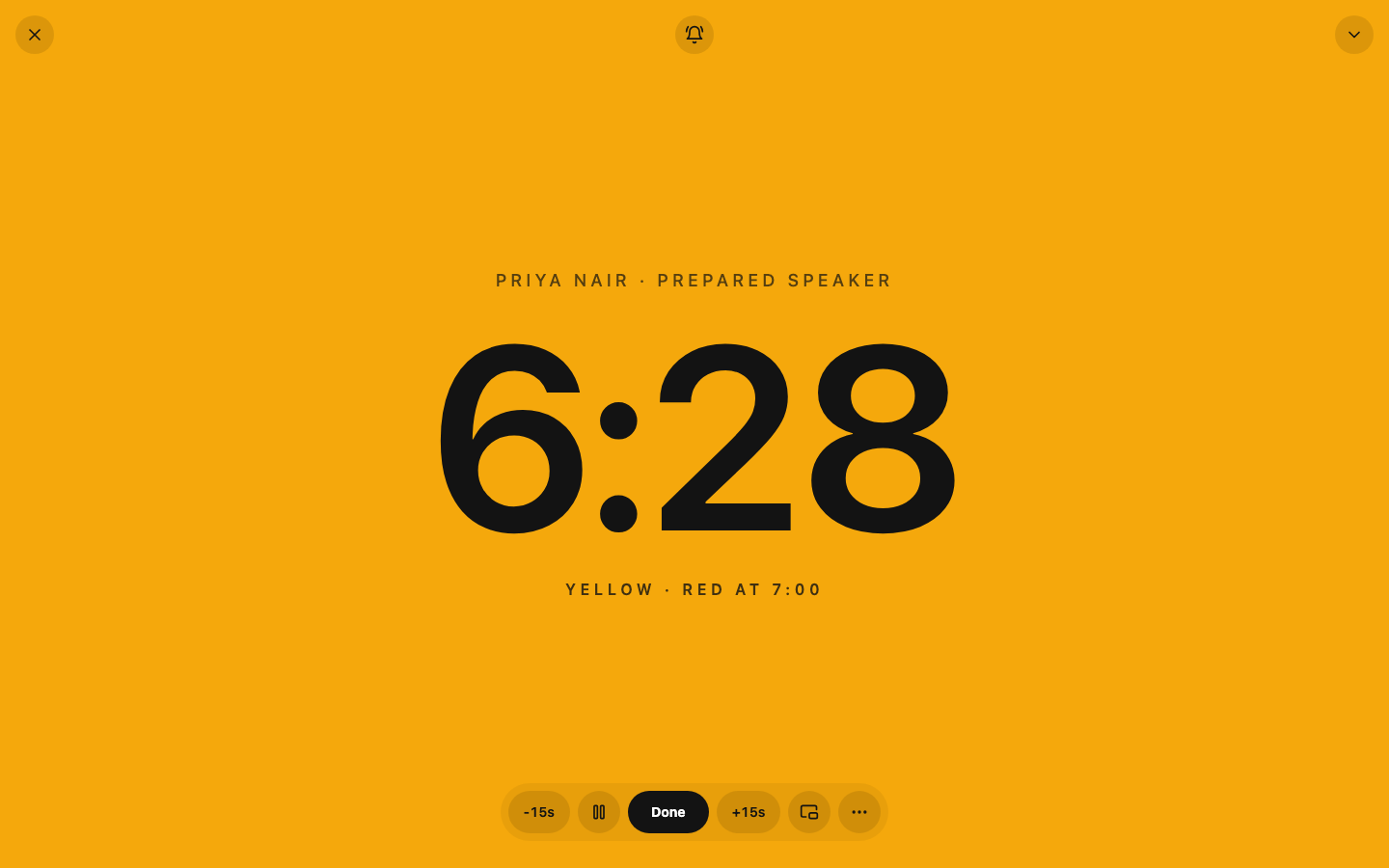
A stopwatch is enough for one speech. In a Toastmasters meeting, the Timer also has to apply the right range for each speaker, show the green, yellow, and red signals, record each result, and report the times at the end.
That is the job we built the free speaking.app Speech Timer to handle.
What the Timer has to keep track of
Toastmasters’ official description of the role puts the Timer in charge of monitoring meeting segments and speakers, explaining the timing rules, showing the signals, and reporting each speaker’s name and time.
Toastmaster magazine’s Timer’s Toolkit boils the equipment down to three things: an agenda, a signal, and a clock.
Even with those basics, there is a lot to keep straight. Each speaker needs the right timing rule and signals, and each result has to stay with the right name. Meanwhile, the Timer is watching closely for the exact start and finish.
For the role script and common meeting timings, see our separate Toastmasters Timer guide.
Signals and qualification windows are different
The signal times and the qualification window are not always the same.
For a five-to-seven-minute International Speech Contest speech, the current 2026–2027 Speech Contest Rulebook sets visible signals at 5:00, 6:00, and 7:00, while the qualifying window runs from 4:30 through 7:30.
The app keeps them separate:
- Signal times control when the screen turns green, yellow, and red.
- Qualification times control the result shown in the report.
Under those rules, a speech ending at 7:18 is past the red signal but still inside the qualification window. The app tracks that difference, so the Timer does not have to work it out while giving the report. Other projects and contests use different ranges, so the agenda and current rules remain the source of truth.
Set up the meeting
Before the meeting starts, choose a built-in range or set custom green, yellow, red, and qualification times. Add speakers and their roles to the lineup, then start the right timer from each row. When a speech ends, its time returns to that same row.
Choose Import agenda to load assignments from EasySpeak or Toastmost, or to paste a FreeToastHost agenda. Review the speakers before adding them, and check the imported list against the live agenda.
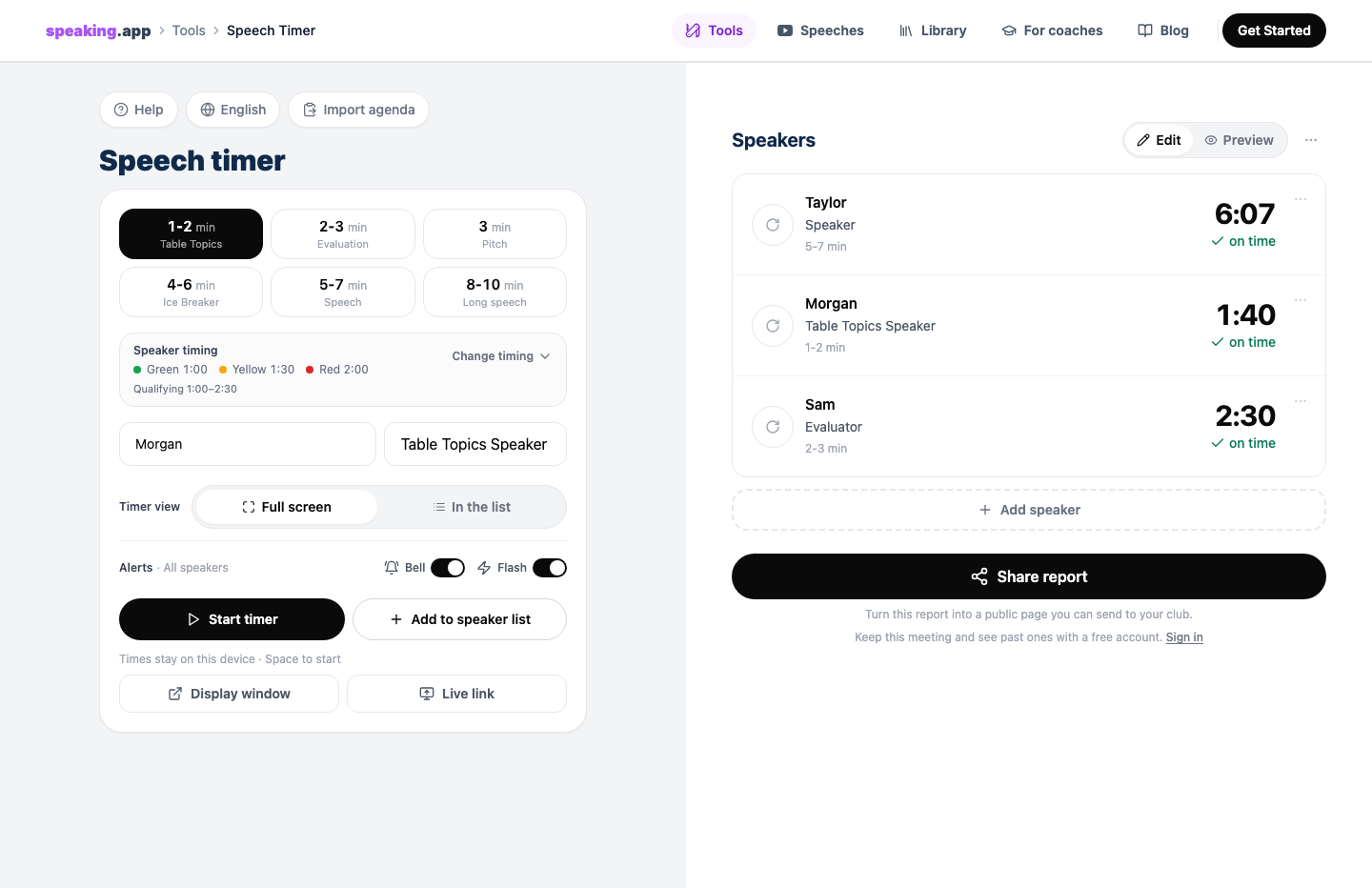
The setup, speaker list, and completed times stay on the same screen.
The same setup works on a phone or tablet. In full-screen mode, the phone becomes the timing signal.
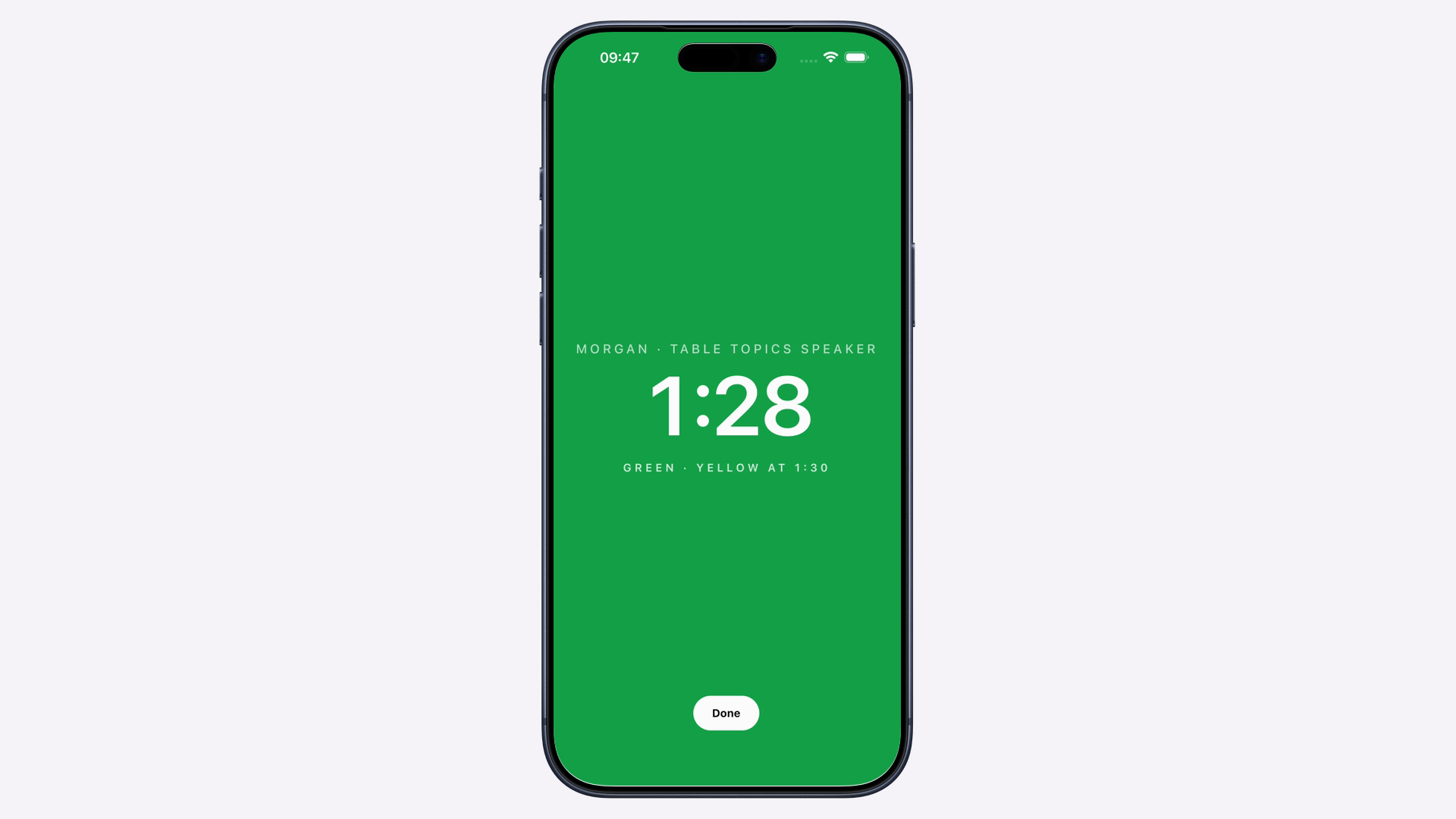
The mobile and desktop timers use the same timing rules, alerts, and report.
Give the room a separate display
The person running the timer needs the controls and speaker list. Everyone else only needs the timing display.
For a projector connected to the Timer’s computer, Display window opens a synchronized view. For another device, Live link creates a temporary, unlisted audience view that can be opened from a link or QR code. Viewers see the timing signal, not the controls, speaker list, or report.
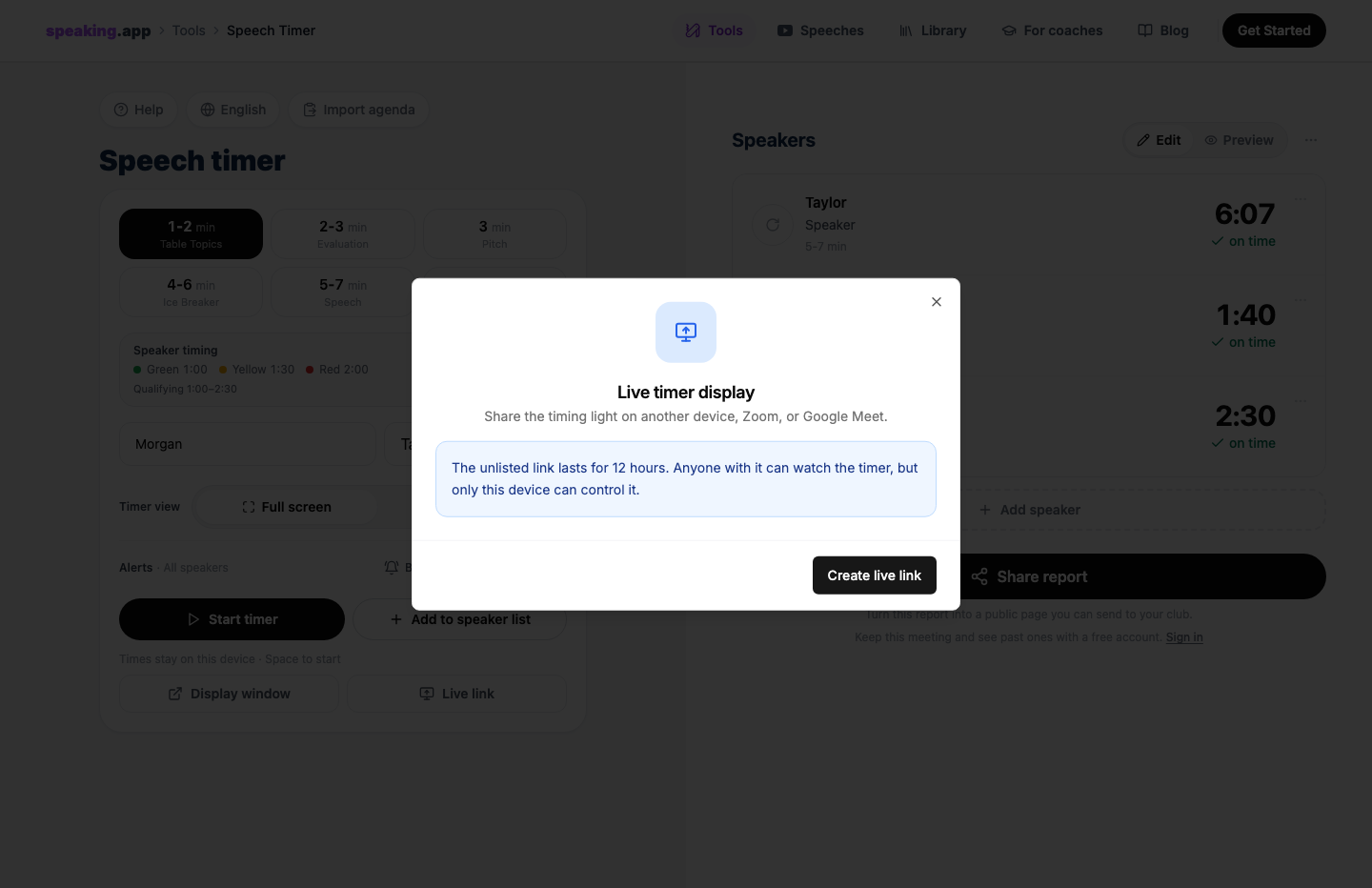
The Timer creates the temporary audience link from the controller.
Hybrid and online meetings use the same idea. The Timer can work from a laptop while a speaker watches the signal on a phone or through a shared call window. Toastmasters’ online-meeting guidance also says remote speakers need a visible color-coded cue.
As the clock reaches each signal time, the audience display changes color. The color name appears on screen too, and the display gives a brief flash, so color is not the only cue.
Each completed speech updates the report
When a speech ends, its time goes straight into the correct report row with the speaker, role, assigned range, and result. The next person can start without copying the number to another app or piece of paper.
The report shows whether someone finished in the target range, within the qualification window, under time, or over time. It also summarizes the number of speakers, total timed speaking, and the longest overrun.
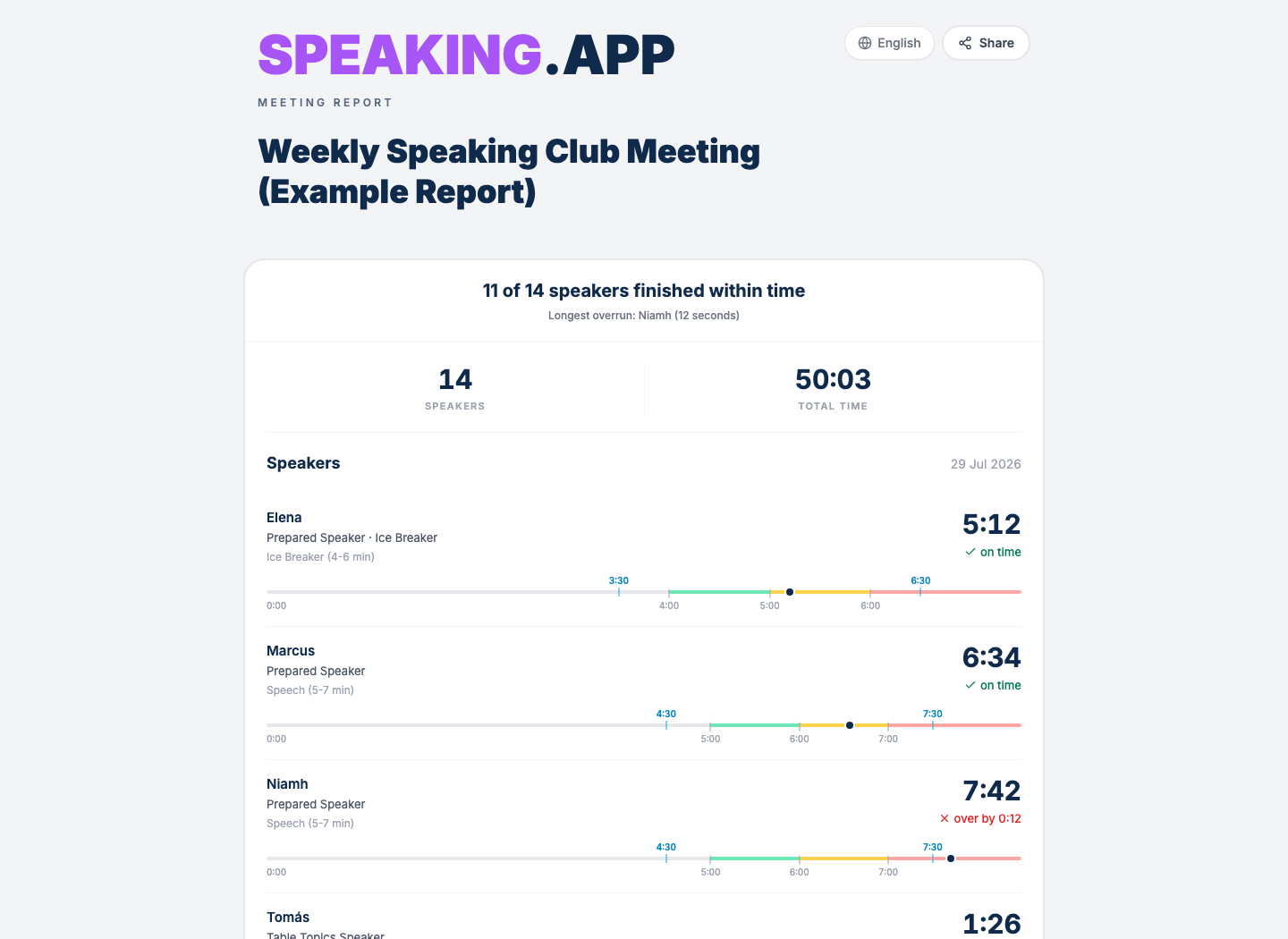
The shared report shows where each finish landed relative to the timing signals.
You can open the same live example Timer report to see the shared report in context.
The timeline places each finish against the minimum, signal range, and maximum qualifying time. For an overrun, you can see how far it went and when the red signal appeared.
Use the report during and after the meeting
At the end of the meeting, the Timer reads out the names and times, adding qualification notes when they matter. That works in the room, but a paper list is not much help if someone wants to check their exact range or signals later.
The app gives the Timer a report to read immediately and, if the club wants it, a link to the same results afterward.
You do not need an account for live timing or the temporary Live link. Without one, the current results stay on the controller device. A free account lets you save meetings across devices and create a lasting, shareable report link. Anyone with that link can read it in a browser.
A private Club Home can keep Timer and Ah-Counter reports together, organized by meeting. It does not replace the spoken report; it gives the club a place to keep the result.
The person timing still watches the speaker and decides when each speech begins and ends. The tool applies the rules, records each result, and prepares the final report.
The first article in this series explains how we approached the same challenge for the Ah-Counter role.
You can try the free Speech Timer in your browser. No account is needed to time a meeting or create a temporary Live link.
speaking.app is an independent product and is not affiliated with or endorsed by Toastmasters International. Timing rules vary by project, contest, and club; always follow the current agenda and official rules. Product details and source links were checked on September 3, 2026.